Main Content
Using an App Token with KeePassXC
Step 1: Install Software
Download KeePassXC for your system: Official Download Page
Step 2: Obtain Secret Key / QR Code
Option A: Self-Service
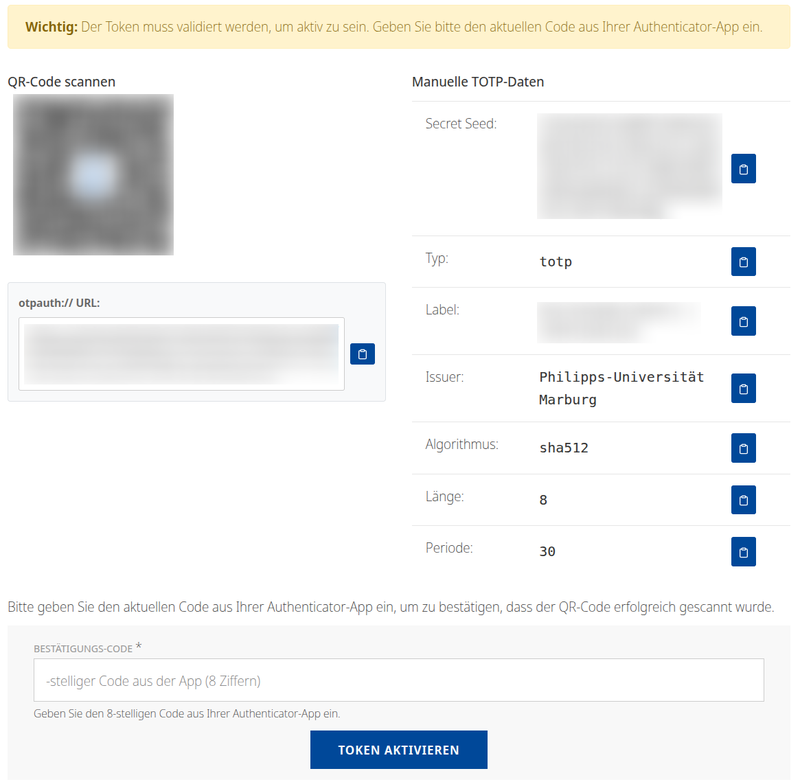
- Log into the Initial Portal or the 2FA Portal.
- Generate a new App Token.
- The QR code & details will be displayed.
Option B: Activation Letter
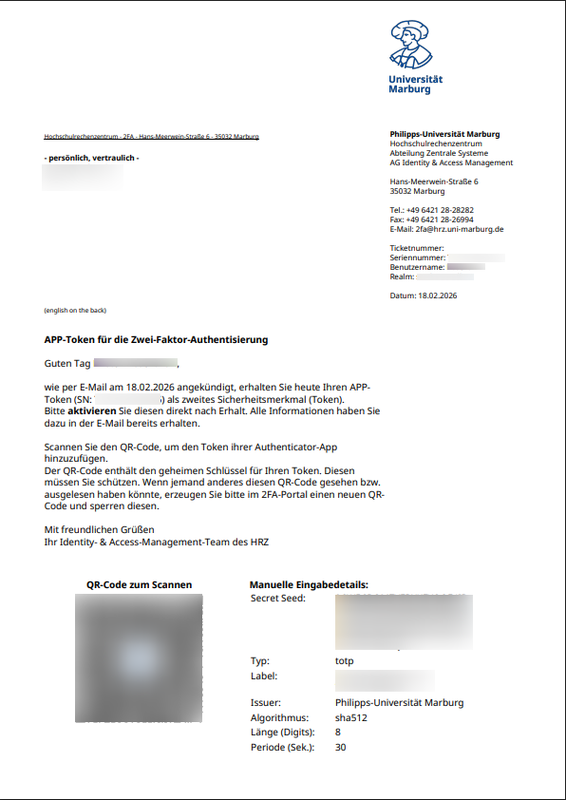
- Use the activation letter sent by the HRZ.
- The QR code and secret key are provided directly in the letter.
Step 3: Setup in KeePassXC
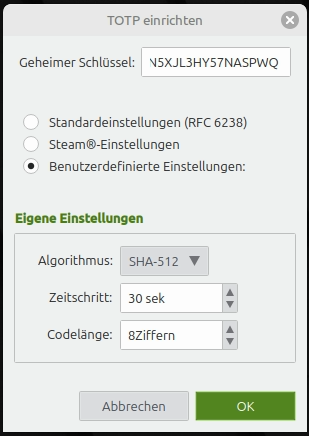
⚠️ IMPORTANT: The University of Marburg uses SHA-512 and 8 digits!
Create entry -> Right-click -> TOTP -> Set up TOTP...
Step 4: Verification & Activation
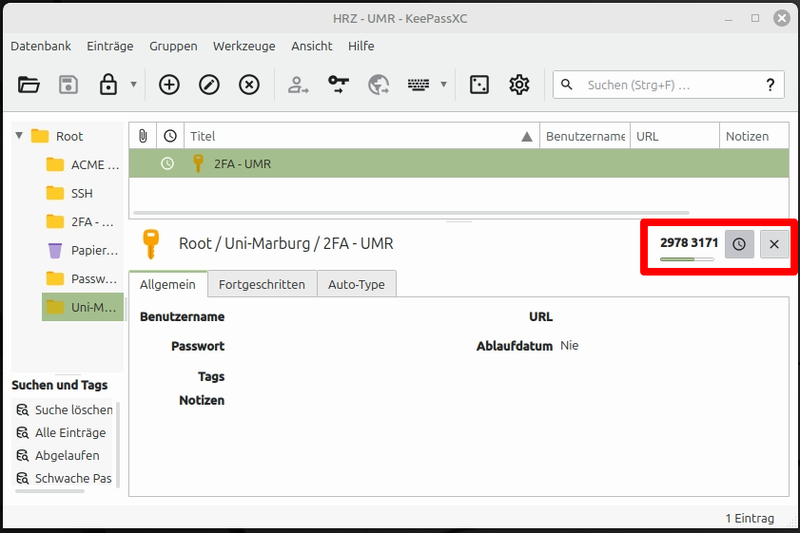
For Option A (Self-Service):
Enter the generated one-time password (TAN) directly into the portal to confirm.
For Option B (Mail):
Finalize the token activation here:
Go to Token Activation