Main Content
Reset Password for Applicants
If you want to reset your password for your applicant account, follow these steps.
This account is only valid for Marvin—you can recognize it by the prefix "app-" or "doc-"!
Reset Password
1. Go to the password reset page
Go to the following page:
2. Enter your username
Enter your full username in the "Username" field.
Tip
If possible, copy the username directly from the email in which it was provided to you. Be careful not to copy any spaces along with it.
3. Enter your date of birth
Enter your date of birth in the "Date of birth" field. The date can be entered in the following formats:
- dd.mm.yyyy (e.g., 31.12.2000)
- mm/dd/yyyy (e.g., 12/31/2000)
Alternatively, you can click the calendar icon and select the day, month, and year there.
4. Answer the security question
Enter the answer to the security question (Captcha) displayed in the "Response to the security question" field. If you are unable to answer the security question, click the icon with the two circular arrows to load a new security question.
5. Request login credentials
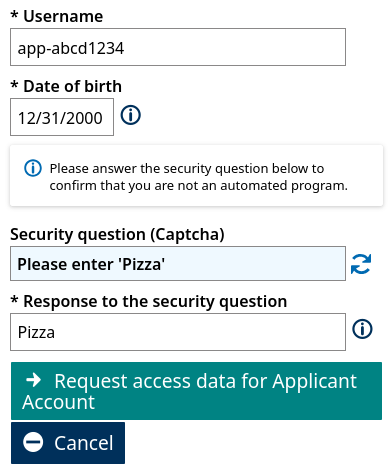
The form should now be completely filled out. Please review your entries one more time. If all entries are correct, click "Request access data for Applicant Account".
6. Write down the security code
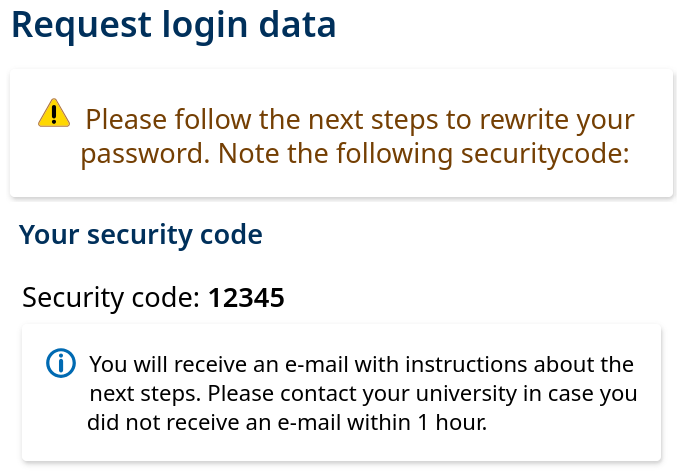
In the next window, a five-digit security code will be displayed. Write down this code or copy it, as you will need it later on.
7. E-Mail mit Bestätigungslink öffnen
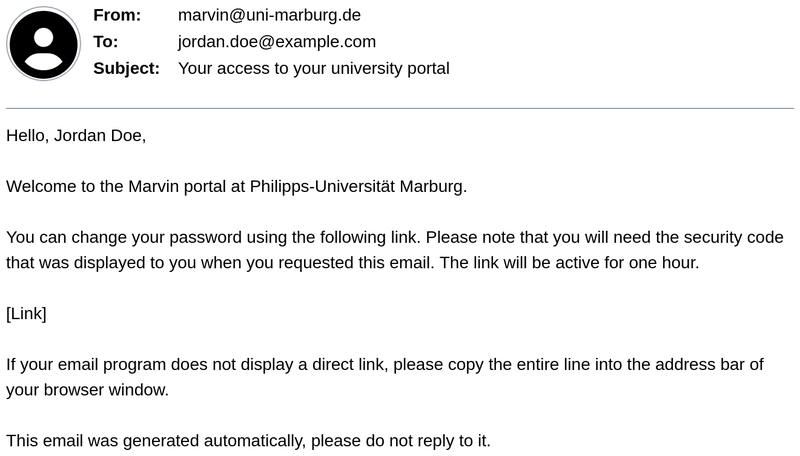
You will receive an email with the subject line "Your access to your university portal". Open the link included in the email. If you cannot find the email, first check your spam folder. If it is not there either, please make sure to check the email inbox associated with the address you originally used to register.
8. Enter the security code
Enter the security code you wrote down earlier in the "Security code" field.
Tip
If possible, copy and paste the security code to avoid typos.
9. Set a new password
Enter your new password in the "New password" and "Repeat password" fields. The password must meet the following requirements:
- Must be at least eight characters long
- Must contain at least one uppercase letter
- Must contain at least one lowercase letter
- Must contain at least one number
- Must contain at least one special character
- Must not contain underscores (_) or spaces
Tip
Save your new password in a secure place, such as a password manager.
10. Change Password
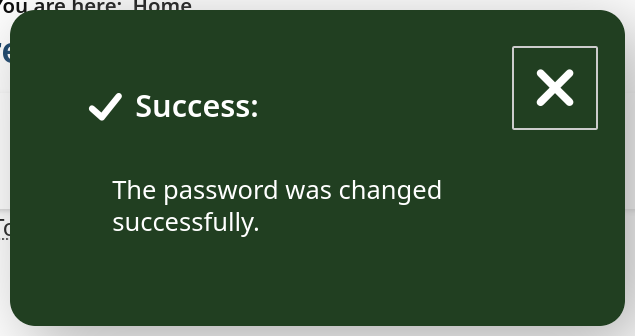
Click "Change password". Once the change has been successfully made, a green confirmation box will appear. This completes the password reset.
Sign in with your new password
11. Open Login
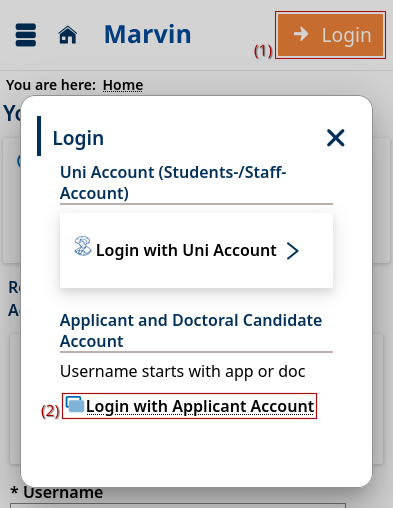
Click "Login" (1) in the upper-right corner. Then, in the window that opens, select "Login with Applicant Account" (2).
12. Benutzerkennung und Passwort eingeben
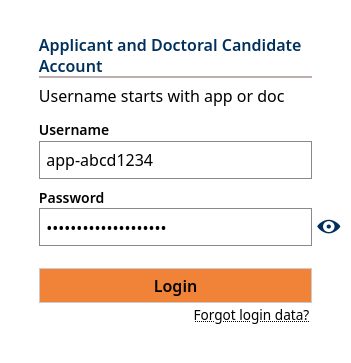
Enter your username and your new password. Then click "Login".
Frequently Asked Questions
What should I do if I don't receive an email with the confirmation link?
First, check your spam folder. If the email isn't there either, make sure to check the email inbox associated with the address you originally used to register.
What should I do if I can't answer the security question?
Click the icon with the two circular arrows to load an alternative security prompt.
How can I enter the correct date format?
You can enter the date of birth in either the dd.mm.yyyy or mm/dd/yyyy format. Alternatively, you can select the date using the calendar icon.
What requirements must my new password meet?
The password must be at least eight characters long and must contain at least one uppercase letter, one lowercase letter, one number, and one special character. Additionally, neither underscores (_) nor spaces may be used.
What should I do if I don't know my username?
Your username was provided to you when you registered. It begins with "app-" or "doc-". Please check the email in which your login information was provided to you.
If you have any problems
For security reasons, the system always behaves the same way, even if you enter incorrect or nonsensical data. In this case, however, no password reset email will be sent. This is to prevent third parties from successfully testing login credentials.
If you are still unable to reset your password after following our instructions, please send an email with a screenshot of the information you entered in Step 5 (Request Login Credentials) to marvin@uni-marburg.de. We will be happy to check whether the information you entered matches what we have on file or if there is another issue.