Main Content
Linux (manually)
Entry requirements
- You have the login credentials for your university account.
- The operating system should be updated to the latest version available for your device.
- Your device must support WPA3-Enterprise.
- Make sure you have the latest drivers for your Wi-Fi adapter installed.
Modern Linux distributions usually install the required WiFi drivers automatically, provided that freely available drivers exist for the WiFi adapter.
- The HARICA_TLS_RSA_Root_CA_2021 root certificate or the file "/etc/ssl/certs/HARICA_TLS_RSA_Root_CA_2021.pem" must be available.
WiFi configuration settings
1. Open the Network Manager applet and click on Network settings.
You should now see all available wireless networks.
2. Select eduroam from the list of wireless networks and click on Connect.
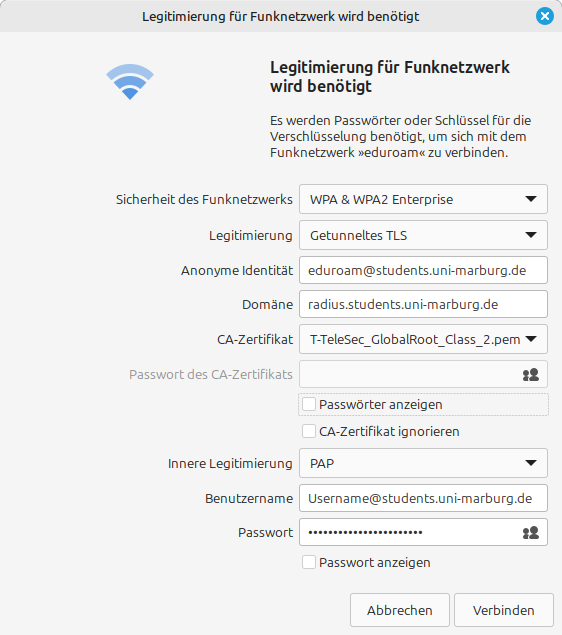
3. Enter the following settings in the "Legitimization for wireless network" dialog:
- Wi-Fi security: WPA3 Enterprise (some linux distributions only show WPA & WPA2 Enterprise)
- Authentication: Tunneled TLS (also: Tunneled TLS or TTLS)
- Anonymous identity:
- Students: eduroam-2026@students.uni-marburg.de
- Staff: eduroam-2026@staff.uni-marburg.de
- Domain: radius.uni-marburg.de
- CA certificate: HARICA_TLS_RSA_Root_CA_2021
- Inner authentication: PAP
- Username:
- Students: username@students.uni-marburg.de
- Staff: username@staff.uni-marburg.de
- Password: Your password
Please note: The eduroam username is not an e-mail address, despite the similarity. Aliases such as firstname.lastname@staff.uni-marburg.de do not work!
If the connection does not work, contact the helpdesk team.
Please include your username (uid) and the WiFi-MAC-address of the device with your inquiry.
As of: 2026-08
OS: Linux Mint 22.3