Main Content
Teams in next.hessenbox
To create a team in next.hessenbox, please navigate to "Contacts." Teams can be created there.
Important notes about the Teams function
- The menu item "Contact Groups" is currently non-functional. Please use the Teams feature instead.
- Always add team members exclusively via the "Users" option to ensure permissions are correctly assigned to their respective user accounts. Only use E-Mail addresses for external guests that are not a member of Marburg University!
- What does the error message "Unidentified User" in the Team folder mean?
This message appears when permissions are not properly linked to the user account—typically because users were added via their email addresses instead of their user accounts.→ Solution: Remove the affected users and re-add them using the "Users" option. They will receive a new invitation and will then be able to access the folder correctly.
Step by step instructions
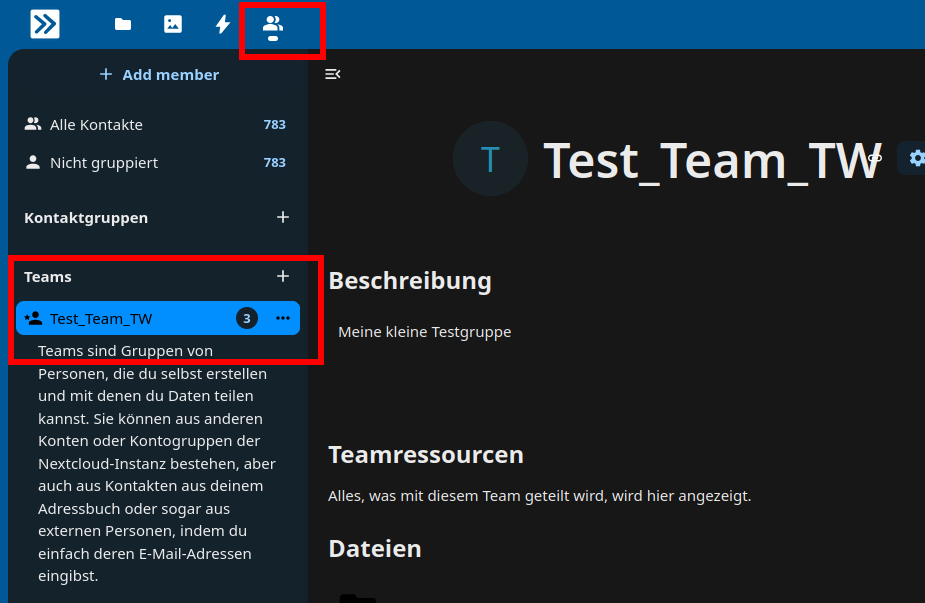
Teams are in the contacts tab of the next.hessenbox.
Team members can be granted administrative privileges.
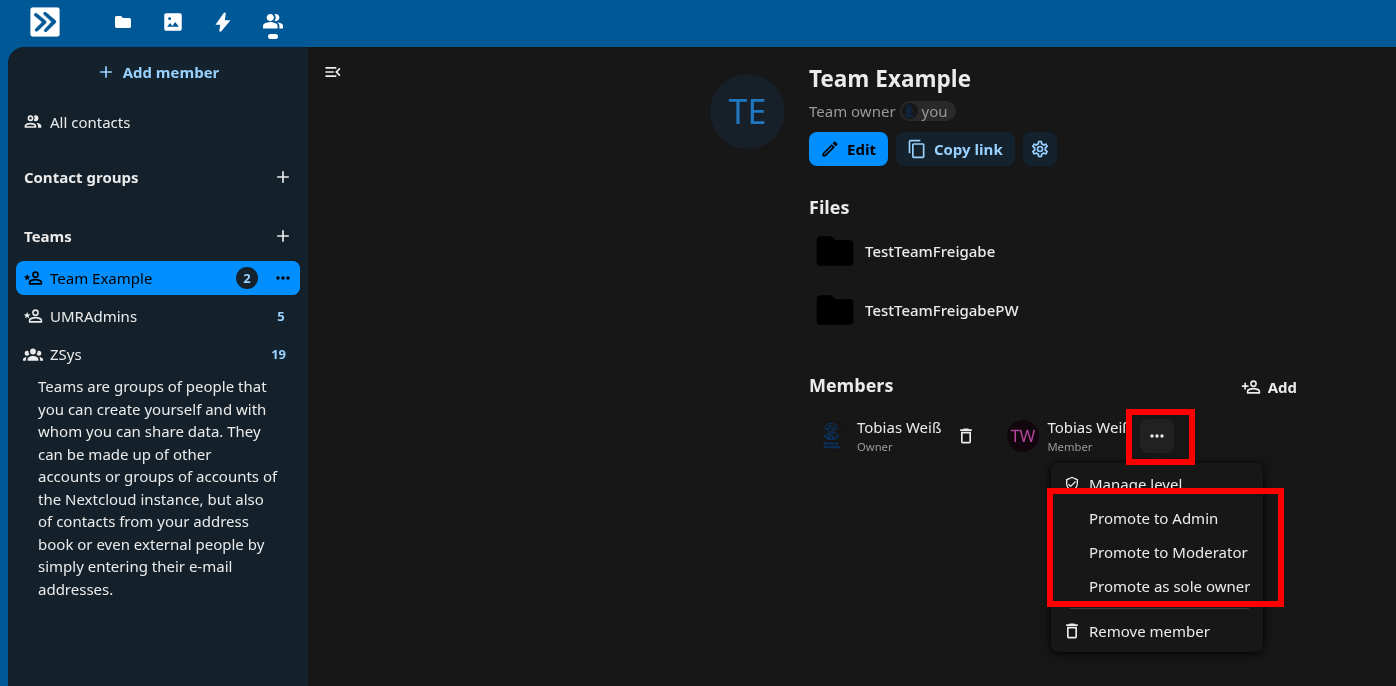
Context menu for a team member in the next.hessenbox.
If you want to invite external team members, please make sure to enforce passwords.
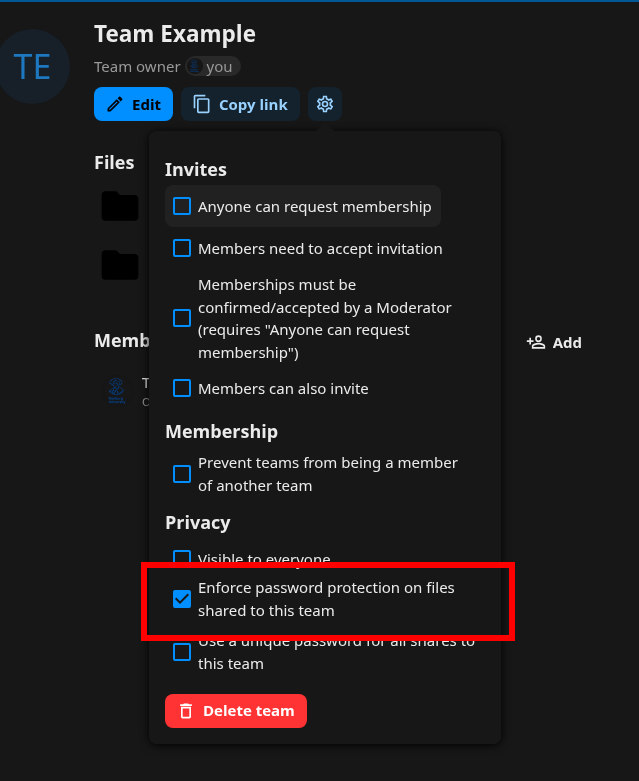
Enforce password protection for a team in the next.hessenbox.
Wichtige Hinweise zur Teams Funktion
- The "Contact groups" menu item is non-functional! Please use the Teams function instead.
- Please add members exclusively via the "Users" option to ensure that permissions are correctly assigned to the respective user account. Use email addresses only for external guests who are not affiliated with the University of Marburg.
- What does the error message "unidentified user" in the Teams folder mean? This message appears when permissions have not been correctly linked to the user account—typically because users were added via email addresses rather than their user accounts. → Solution: Remove the affected users and add them again using the "Users" option. They will then receive a new invitation and be able to use the folder correctly.
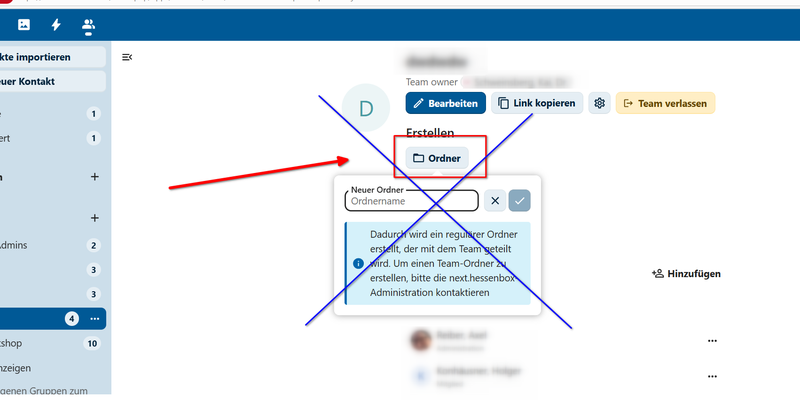
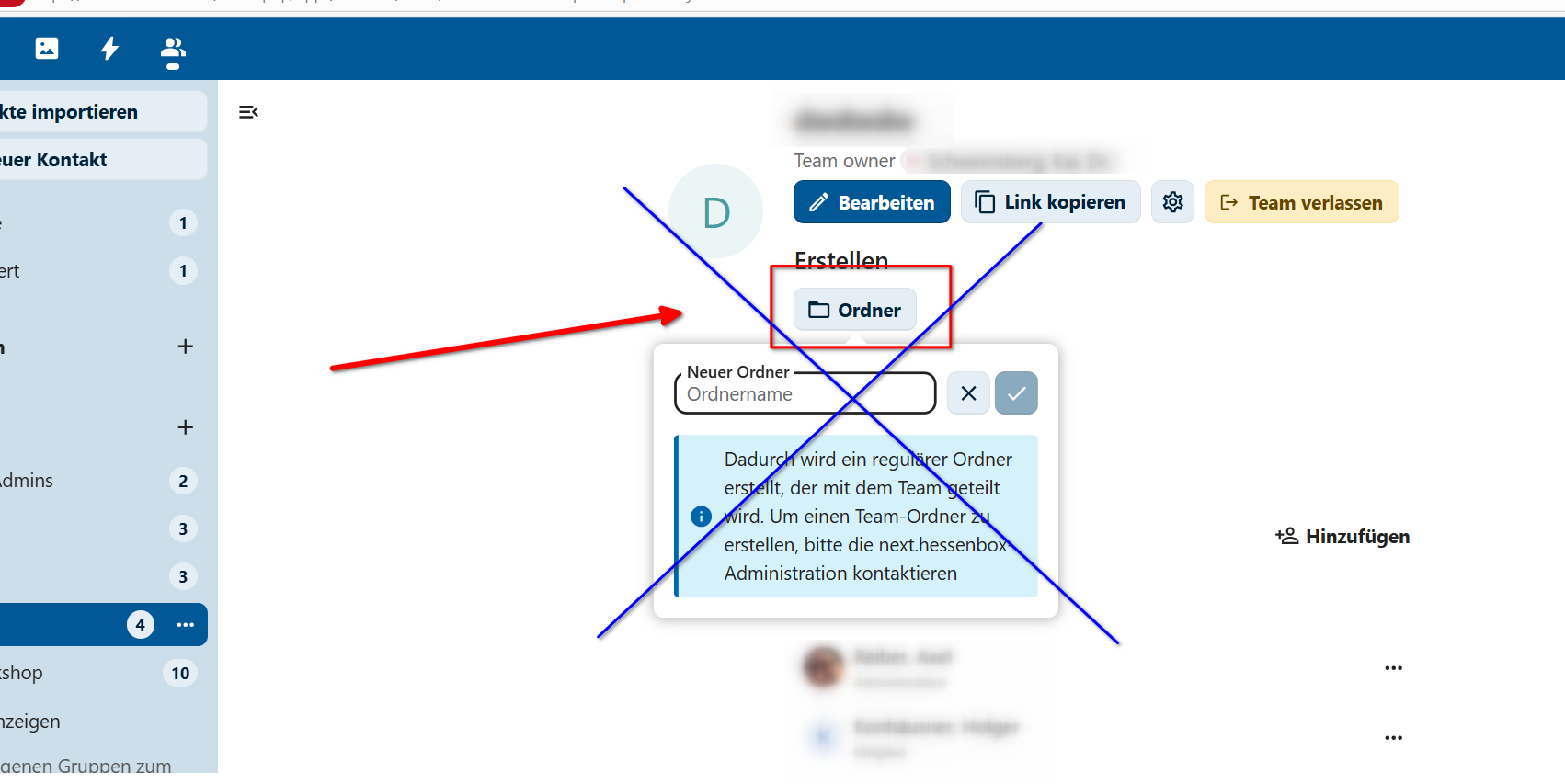
- Please manage sharing permissions only via the "Files" section. Do not use the button in the "Teams" section.