Main Content
Request Software via the opsi Client Kiosk
The opsi Client Kiosk allows you to request software directly through opsi. A selection of free software is available. For an overview of the software available through opsi, and to check whether a product is available in the Kiosk, visit Software Packages and Equipment (internal only).
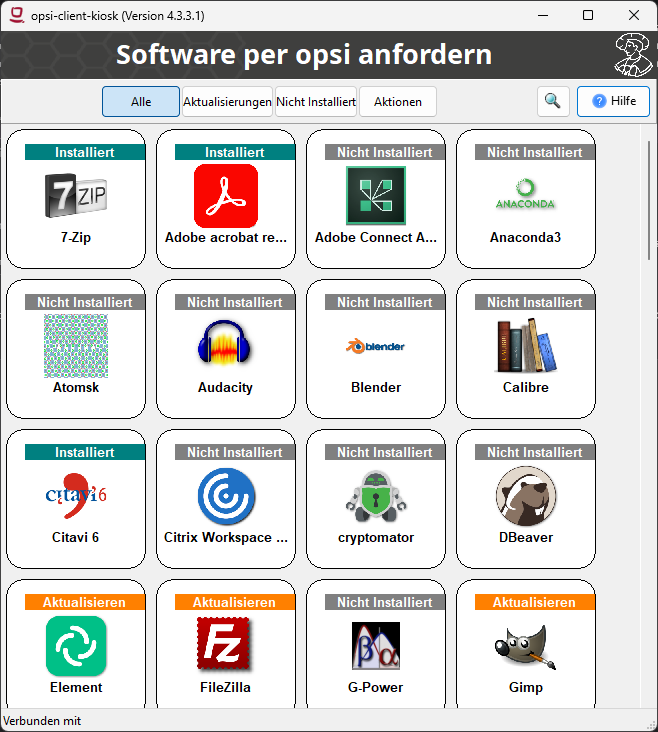
- You can find the Kiosk under the Start menu shortcut “opsi Kiosk - Software anfordern”
Notes
- The Kiosk is currently available only on Windows.
- This feature is not available on shared devices, such as those in PC Pools.
- On laptops, notebooks, and other devices operating in WAN/VPN mode, you must establish a VPN connection to use the Kiosk.
- You can filter and search for applications based on their status. Depending on the status, you can select the following actions after clicking an application icon:
- Install
- Update
- Uninstall
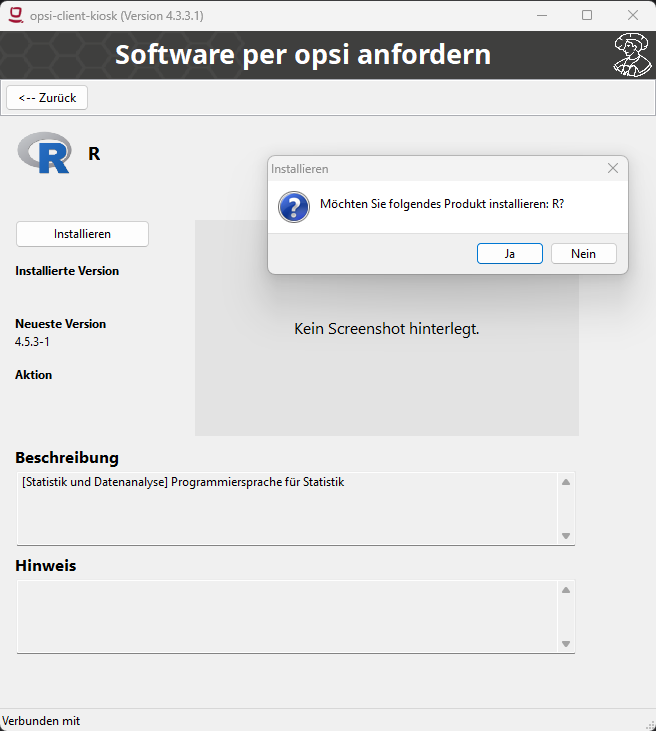
- Actions you have requested will not be executed immediately, but only the next time opsi is started.
- On desktop PCs, this happens after a restart.
- Laptops, notebooks, and other devices in WAN/VPN mode must first download the software in the background; this requires a VPN connection and may take some time before opsi prompts you to restart.
Additional Information
Documentation at UIB
If you have any software requests for the kiosk, please contact:
paketierung@hrz.uni-marburg.de
Please note that, unfortunately, we cannot accommodate all requests.