Main Content
Set up and use the Two-Factor Module in the Uni Marburg-App
Please follow the steps below to successfully set up the 2FA-Module.
Preparation: Activate App Security
Create a PIN code beforehand.
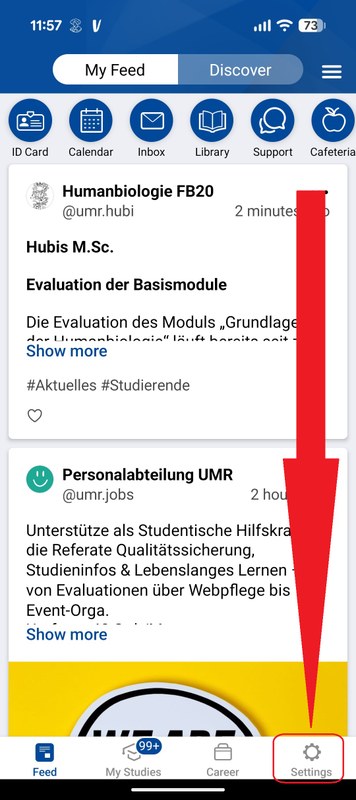
- First go to Settings (Fig. 1).
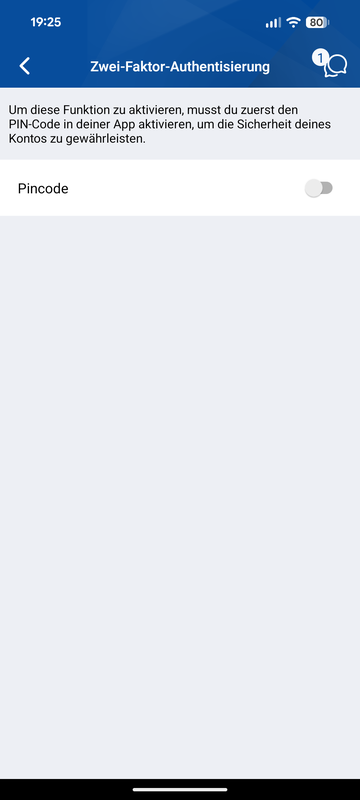
- Activate the PIN code (Fig. 2).
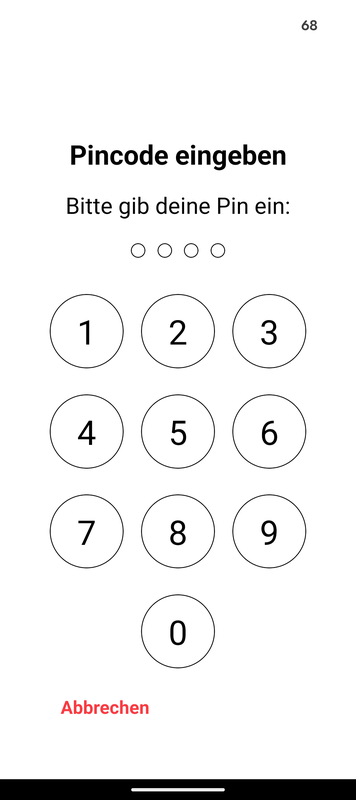
- Enter a memorable 4-digit number sequence (Fig. 3).
From now on, you must enter this number sequence every time you open the Uni Marburg-App.
Tip: If you don’t want to enter the PIN every time, you can also enable Face ID / Touch ID in Settings (General).
Open the 2FA Module
In the Uni Marburg-App, tap “My Studies" in the bottom menu bar (Fig. 4).
You will now see a list containing the module “Two-factor authentication" (Fig. 5). Tap it.
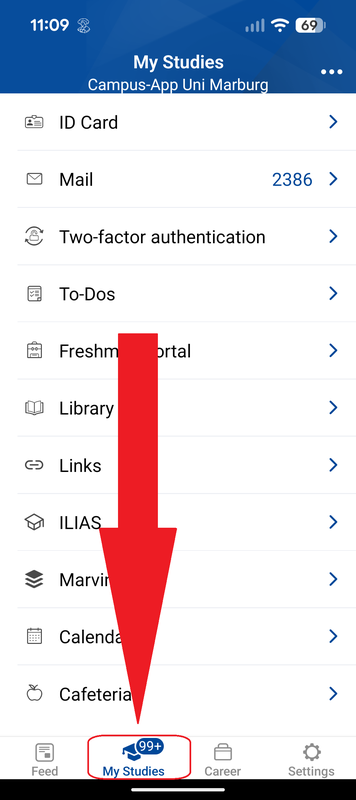
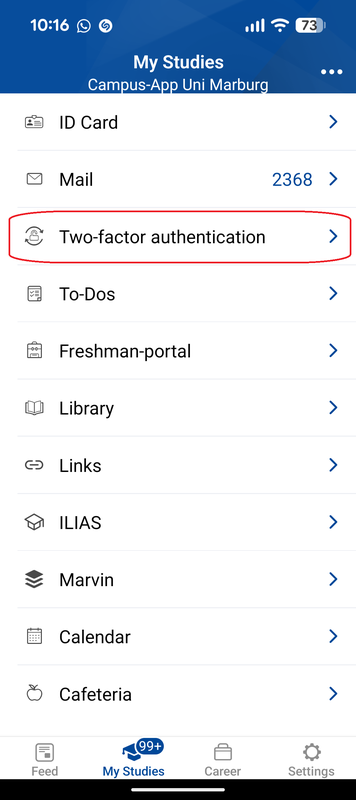
Fig. 4 Fig.5
Generate a QR Code
Next, you need a QR code. There are different ways to get one:
- If you already have an active token (TAN list or YubiKey), you can generate a QR code for the Uni Marburg-App in the 2FA portal (video instructions for students and staff). Tip: Use a device other than your smartphone and, if problems occur, check the guides and contact options for the app token and 2FA portal (see below).
- If you do not yet have an active token (TAN list or YubiKey), please use:
https://forms.uni-marburg.de/de/hrz/2fa/antrag-ausgabe-eines-tokens - More information:
https://www.uni-marburg.de/de/hrz/dienste/2fa/app-token/anleitung-app-token
Scan the OR Code
In the next step, scan the QR code that is displayed (Fig. 6).
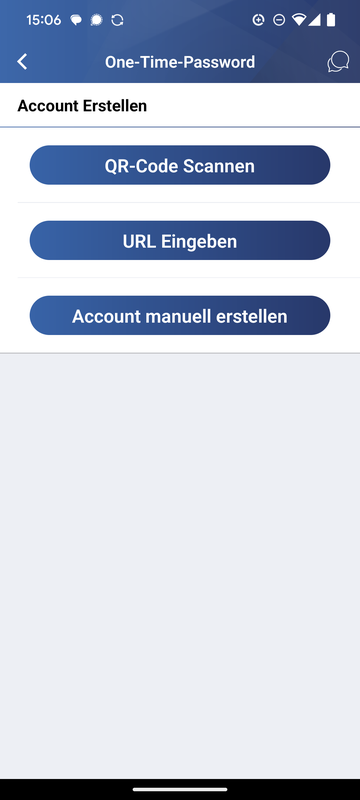
Fig. 6
After successfully scanning the QR code, you will find an entry called “Philipps-Universität Marburg” under the “Two-factor authentication” module. This token (code) must now be activated:
Enter this 8-digit code into the “Confirmation Code” field in the 2FA portal and click “Activate token”.
This completes the setup of the 2FA module in the Uni Marburg-App.
From now on, the 2FA modul will display a new time-based token every 30 seconds in the form of an 8-digit number. You can use this for two-factor authentication login.
Helpful videos:
“App Token for Staff Accounts with the Uni Marburg App”
https://youtu.be/8sPlrrxb0NQ
“App Token for Student Accounts with the Uni Marburg App”
https://youtu.be/q1LqWAalahs
“Create New and Additional App Tokens”
https://youtu.be/HLvBCDsGTHI
App token instructions:
https://www.uni-marburg.de/de/hrz/dienste/2fa/anleitung-app-token
Email support:
If you have questions, contact 2FA support: 2fa@hrz.uni-marburg.de
Tip:
Always obtain the token from the 2FA module first before accessing a link or a service (e.g. ILIAS or Marvin).
Proceed as follows:
- Click on “My Studies”.
- Click on “two-factor authentication”.
- Press and hold the time-based code (token). It will be copied to the clipboard.
- Only then go to the link or service (e.g. ILIAS or Marvin).
- Enter your login credentials and the saved token there.